How to Take Photos and Videos on Apple TV Using Continuity Camera
Apple built Continuity Camera into tvOS 17 for FaceTime calls — but left out a shutter button. Here is how to turn your Apple TV 4K into a live big-screen camera with Siri Remote controls and automatic saving to Photos.
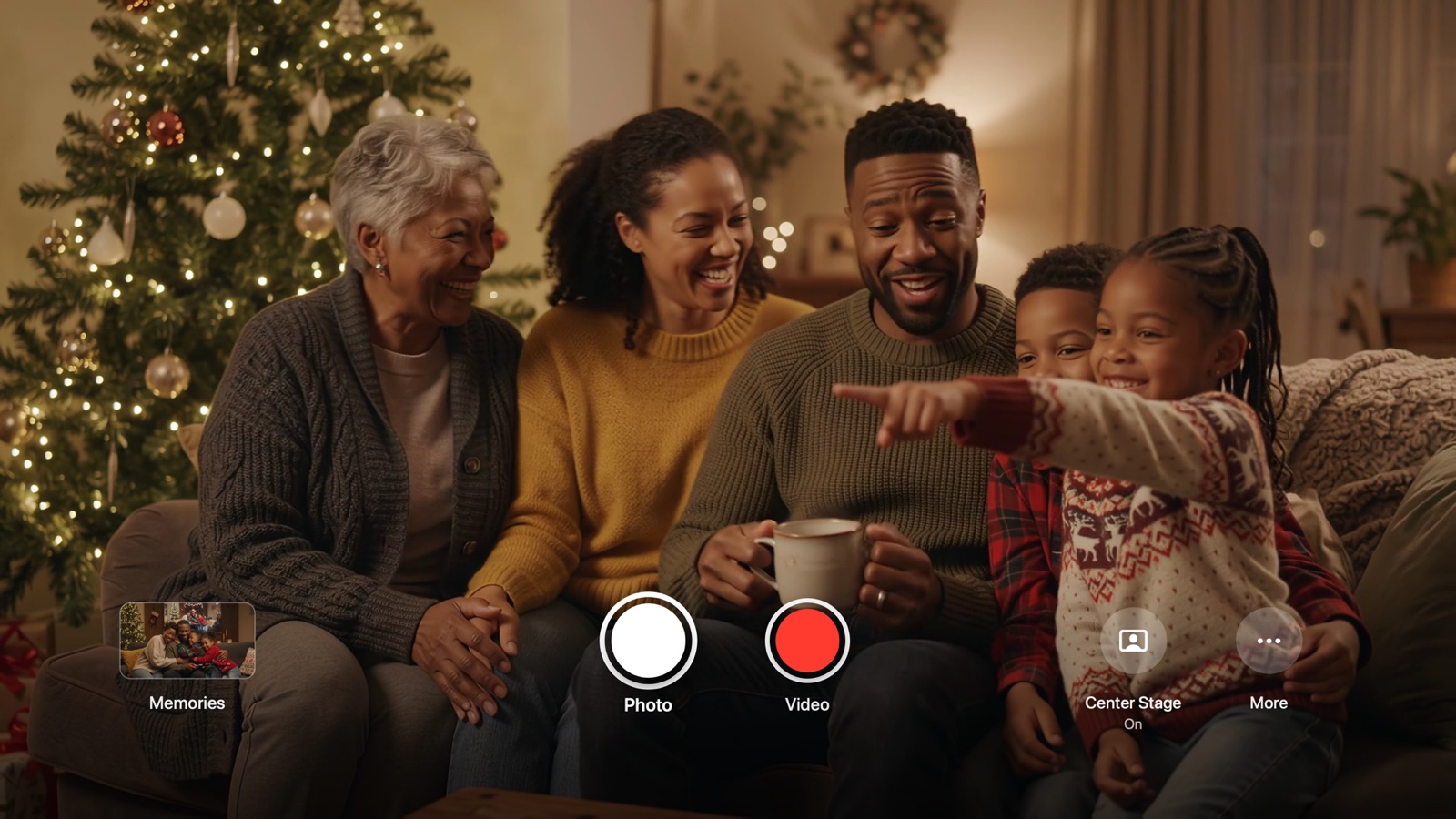
If you have ever connected your iPhone to Apple TV 4K for a FaceTime call, you already know the magic: the entire couch fits comfortably in the frame, Center Stage pans smoothly as kids jump around, and everyone can actually see themselves on a 65-inch screen instead of squinting at a tiny phone.
Yet the moment you want to snap a group photo or record a family video without being on a phone call, tvOS has no built-in Camera app. FamJam bridges that exact gap — turning Continuity Camera into a dedicated, zero-cloud family camera controlled with one click of your Siri Remote.
Step-by-Step: Taking Your First Photo on Apple TV
Install FamJam on Apple TV 4K (and optionally iPhone or iPad)
Search for FamJam on the Apple TV App Store (Apple TV 4K 2nd generation or later running tvOS 17+). Installing the companion app on your iPhone or iPad unlocks automatic background saving straight to your Photos library.
Choose Connect iPhone and rest your device near the TV
Click Connect iPhone on the Apple TV welcome screen and confirm on your iPhone (XR or later) or Center Stage iPad. Set it horizontally below or beside your TV facing the room — no tall tripod required.
Frame everyone live with Center Stage
Watch the big screen from the sofa. Toggle Center Stage right from the TV controls so the ultra-wide lens automatically keeps everyone centered, or switch to manual framing when you want a fixed composition.
Click the Siri Remote for countdown photos or full-audio video
Press Photo on the Siri Remote to trigger a giant 3-second countdown everyone in the room can read, or press Video (or Play/Pause) to record hands-free 4K-class video with rich room audio.
Save straight to iPhone Photos over home Wi-Fi
Open Memories › Send to iPhone once to pair your phone with a 4-digit Siri Remote code, or let any visiting relative scan the QR code with their standard Camera app to save shots in Safari with zero app install.
Apple TV FaceTime vs. Phone Timer vs. FamJam on Apple TV
| Capability | Built-in tvOS FaceTime | 10s Phone Timer | FamJam on Apple TV |
|---|---|---|---|
| Take still photos & videos | No (calls only) | Yes | Yes (Photo + Video) |
| 65-inch live room viewfinder | Only during a call | No — blind framing | Yes — always live |
| Siri Remote shutter & Play/Pause | No | No — requires sprinting | Yes — native remote |
| Center Stage auto-framing | Yes | No | Yes (one-click toggle) |
| Instant guest Wi-Fi QR download | No | Manual AirDrop/texting | Yes — zero app needed |
Best Placement & Lighting Tips for Living-Room Shots
Setting your iPhone or iPad right on the media console under the TV naturally aligns everyone's gaze with the screen — so when the family looks at themselves on TV, everyone looks straight toward the lens.
Continuity Camera sensors love warm side lighting. Dim overhead glare facing the TV screen and switch on living-room lamps for rich, cinema-grade skin tones.
You don't even have to look down at the Siri Remote — rest your thumb on the Play/Pause button and click whenever a genuine laugh happens.
Try FamJam on your Apple TV tonight
No account, no cloud uploads, and zero tracking. Set your iPhone or Center Stage iPad near the TV and capture everyone together.
Frequently Asked Questions
Which Apple TV models support Continuity Camera?
Continuity Camera requires Apple TV 4K (2nd generation, 2021) or Apple TV 4K (3rd generation, 2022) running tvOS 17 or later. First-generation Apple TV 4K (2017) and Apple TV HD do not support Continuity Camera in tvOS.
Does my iPhone need FamJam open while acting as the camera?
No! Continuity Camera is built right into iOS 17+ and iPadOS 17+. Once your iPhone or iPad is connected as the Apple TV camera, you lock it and set it down; when you open FamJam on your phone afterwards, every photo and video saves automatically to Photos.
Are my family photos uploaded to any cloud server?
Never. FamJam has no accounts, no cloud storage, and zero analytics (Data Not Collected on the App Store). Every photo and video stays on your Apple TV and transfers directly over your home Wi-Fi.