Using an iPad as Your Apple TV Continuity Camera (While Keeping Your iPhone in Hand)
Giving up your iPhone by the TV means nobody on the couch has their phone in hand. Using a family iPad as the Continuity Camera solves that completely — and unlocks live saving on your iPhone as you shoot.
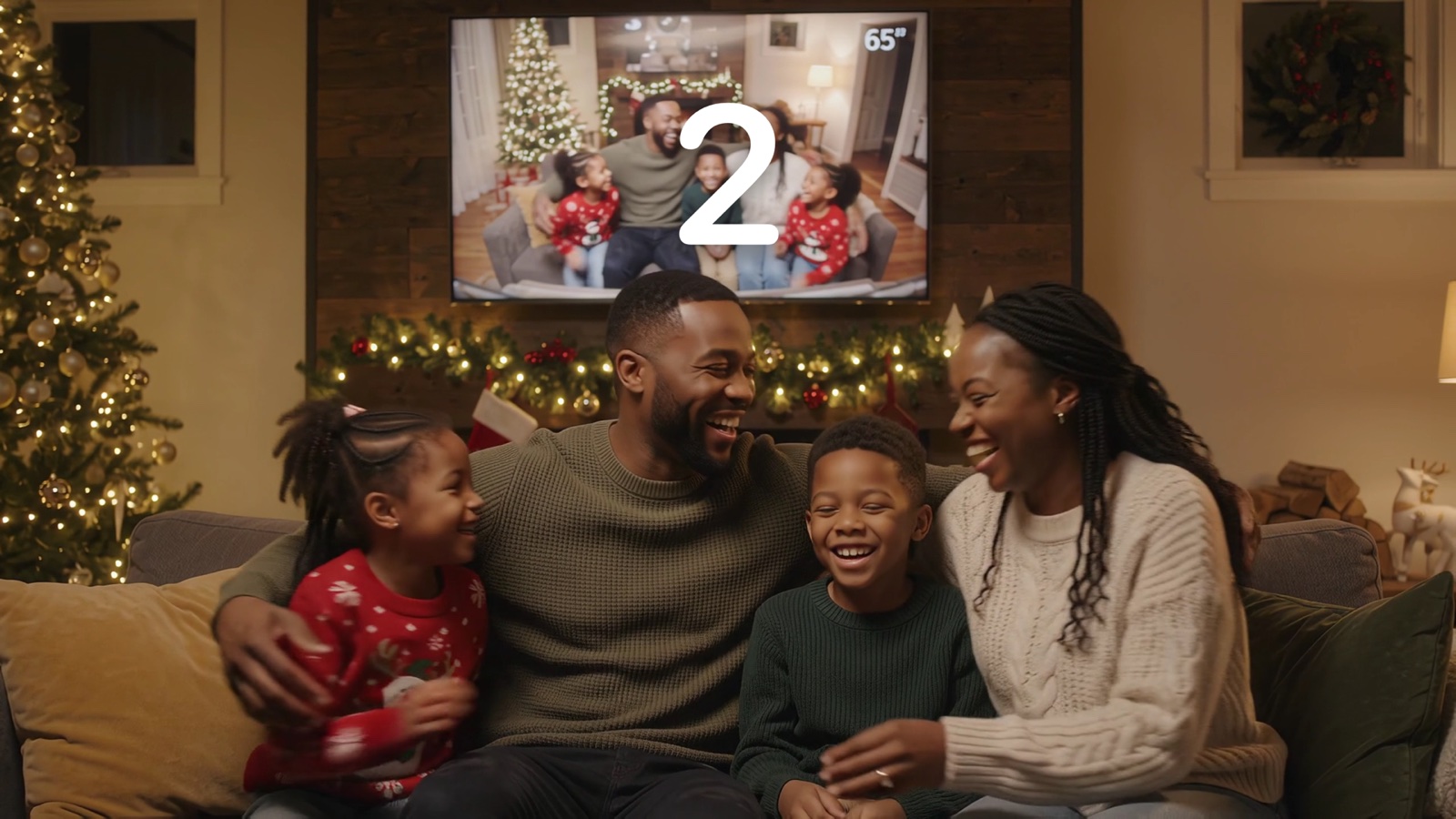
Most people think Apple TV Continuity Camera only works with an iPhone. In reality, tvOS 17 and iPadOS 17 support Center Stage iPads as wireless Apple TV cameras — and for family gatherings, an iPad is arguably the better camera.
Why? Two reasons: first, almost every iPad already lives in a Smart Folio or keyboard stand that props cleanly on a TV console with zero extra accessories. Second, leaving the iPad by the TV means your iPhone stays right in your hand on the couch — saving new memories into Photos live the second each shot is taken.
How to Set Up the iPad Camera + iPhone Live-Save Combo
Sign into the same Apple ID on Apple TV and your iPad
Apple TV Continuity Camera automatically discovers nearby iPhones and iPads signed into the Apple TV user's iCloud account (or added as a Home user on Apple TV) with Wi-Fi and Bluetooth enabled.
Stand your iPad in its Folio cover facing the couch
Unlike an iPhone (which uses its rear camera for Continuity Camera), an iPad in a Folio stand faces the room with its 122-degree front Center Stage camera. FamJam automatically detects an iPad and selects its front Center Stage lens first.
Pick your iPad on FamJam's Apple TV Connect screen
Open FamJam on Apple TV, click Connect iPhone, and select your iPad from the Continuity Camera list. Accept the prompt on the iPad screen — the whole living room appears live on TV.
Open FamJam on your iPhone (or another iPad) on the sofa
Keep FamJam open on your iPhone in your hand while snapping photos with the Siri Remote. Every photo and video streams over home Wi-Fi into your iPhone Photos library within seconds — ready to share to the family group chat immediately.
Supported iPad Models for Apple TV Continuity Camera (iPadOS 17+)
| iPad Lineup | Supported Generations | Center Stage Lens Selected by FamJam |
|---|---|---|
| iPad Pro 12.9-inch / 13-inch | 3rd generation (2018) and later, including M4 | Front Ultra-Wide (Center Stage on 5th gen+) |
| iPad Pro 11-inch | 1st generation (2018) and later, including M4 | Front Ultra-Wide (Center Stage on 3rd gen+) |
| iPad Air | 3rd generation (2019) and later, including M2/M3 | Front Center Stage (5th gen+ landscape on M2+) |
| iPad (standard) | 8th generation (2020) and later | Front Center Stage (9th gen+, landscape on 10th gen+) |
| iPad mini | 5th generation (2019) and later | Front Center Stage (6th gen and later) |
Why Smart Lens Selection Matters on iPad
Recent iPad Air, iPad Pro (M4), and 10th-generation iPad models place the front Center Stage camera centered along the long landscape edge — giving you a dead-center optical axis right beneath your TV.
Want your memories in your iPad's Photos library too? FamJam runs natively on iPadOS with a 5-column regular-width gallery, Split View / Stage Manager orientation support, and two-tap Polaroid sharing.
Try FamJam on your Apple TV tonight
No account, no cloud uploads, and zero tracking. Set your iPhone or Center Stage iPad near the TV and capture everyone together.
Frequently Asked Questions
Why did other apps show the wall behind my iPad?
On an iPhone, the rear ultra-wide camera faces the room. On an iPad in a Smart Folio cover, the rear camera points at the wall while the front camera faces your living room. FamJam specifically checks for iPad Continuity Cameras and selects the front Center Stage lens automatically.
Can my spouse's iPhone save photos while my iPad is the camera?
Yes! Any number of family iPhones or iPads can pair with your Apple TV via Memories › Send to iPhone, and visiting guests can scan the QR code with zero app install.